
Sydney Guides: Sydney for Students: The NSW Government provide
A comprehensive guide to Sydney for students, including universities, accommodation, and costs. Sydney is home to some of Australia's most prestigious.
7 min read

Apple Silicon Macs with M1, M2, M3, or M4 chips have the unified memory architecture needed to run quantised 7b and 13b parameter models at usable speeds.
Tech & Ideas Desk is a contributing writer covering guides and public affairs for The Sydney Times.
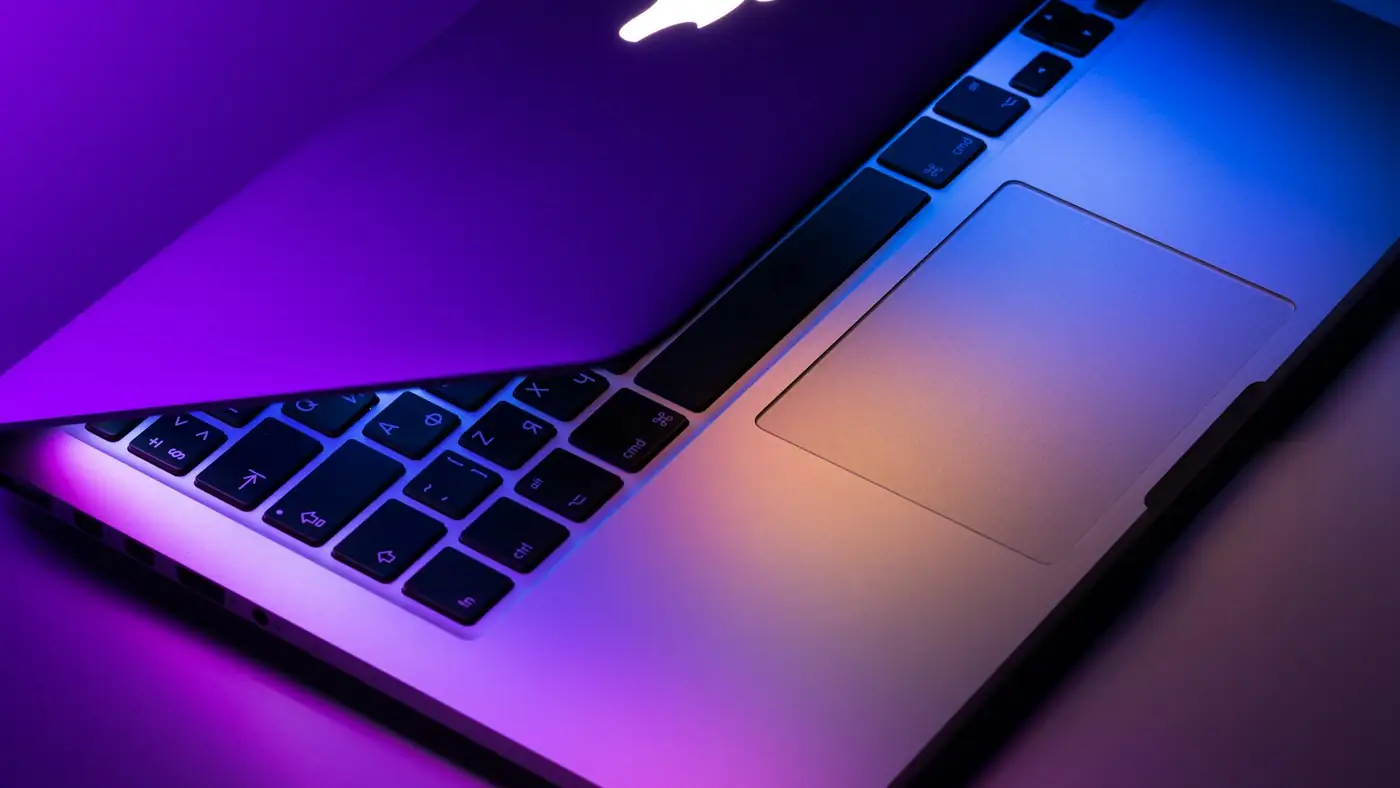
Running a large language model locally on your Mac keeps all data on your machine. No prompts leave your computer, which matters for sensitive work, medical queries, or financial analysis. Apple Silicon Macs with M1, M2, M3, or M4 chips have the unified memory architecture needed to run quantised 7b and 13b parameter models at usable speeds.
A MacBook Pro with 16GB of unified memory can run 7b parameter models comfortably. A Mac Studio or Mac Pro with 32GB or more can run 13b and 34b parameter models. Apple's Metal GPU acceleration handles matrix operations faster than CPU inference alone.
Ollama is the simplest way to run local models on macOS. Download the installer from ollama.com or install via Homebrew:
brew install ollama
After installation, verify it works by running ollama --version in Terminal. Ollama will install as a background service and listen on port 11434 for API requests.
Pull a model with a single command:
ollama pull llama3.1:8b-instruct
ollama run llama3.1:8b-instruct
The ollama run command starts an interactive chat session. The model runs entirely on your Mac's unified memory. To stop the session, type /bye.
Ollama maintains a library of supported models. Llama 3.1 8B, Mistral 7B, and Phi-3 Mini all run well on 16GB Macs. For larger contexts, use the :q4_K_M quant variant to reduce memory usage.
Ollama provides a bare API by default. For a graphical interface, install Open WebUI:
docker run -d -p 3000:8080 --add-host=host.docker.internal:host-gateway ghcr.io/open-webui/open-webui:main
Open WebUI runs in your browser at http://localhost:3000 and connects to the local Ollama instance. It supports chat history, multiple model selection, and file uploads for context.
If you want lower-level control or need to run models in GGUF format without Ollama, use llama.cpp:
git clone https://github.com/ggerganov/llama.cpp
cd llama.cpp
make -j
./main -m models/llama-3.1-8b-instruct.Q4_K_M.gguf -n 512 --color -ngl 99
The -ngl 99 flag offloads all GPU layers to Metal. This produces faster token generation than CPU-only inference. The llama.cpp project also includes a server mode for API access.
Check your Mac's memory pressure in Activity Monitor while running a model. If swapping occurs, lower the context size or use a more heavily quantised model. For M-series chips with 8GB of unified memory, stick to 7b parameter models with 2048 token context windows.
Apple's MLX framework, available through Hugging Face, provides another option for running models with native Apple optimisations. The MLX community has ported popular models like Mistral and Llama to the framework with comparable speeds to Ollama.
Local LLMs eliminate the network risk of sending prompts to cloud APIs. However, downloaded model weights should still be verified against official checksums where available. Treat untrusted GGUF files the same way you would treat any executable downloaded from the internet.
Direct inquiries, corrections, or documentation concerning this dispatch to our editorial newsroom desk.
A comprehensive guide to Sydney for students, including universities, accommodation, and costs. Sydney is home to some of Australia's most prestigious.

A comprehensive guide to Sydney for families, including schools, parks, and activities. The city offers an exceptional range of family-friendly destinations.

A comprehensive guide to moving to Sydney, including neighbourhoods, transport, and costs. The guide covers everything you need to know about relocating.
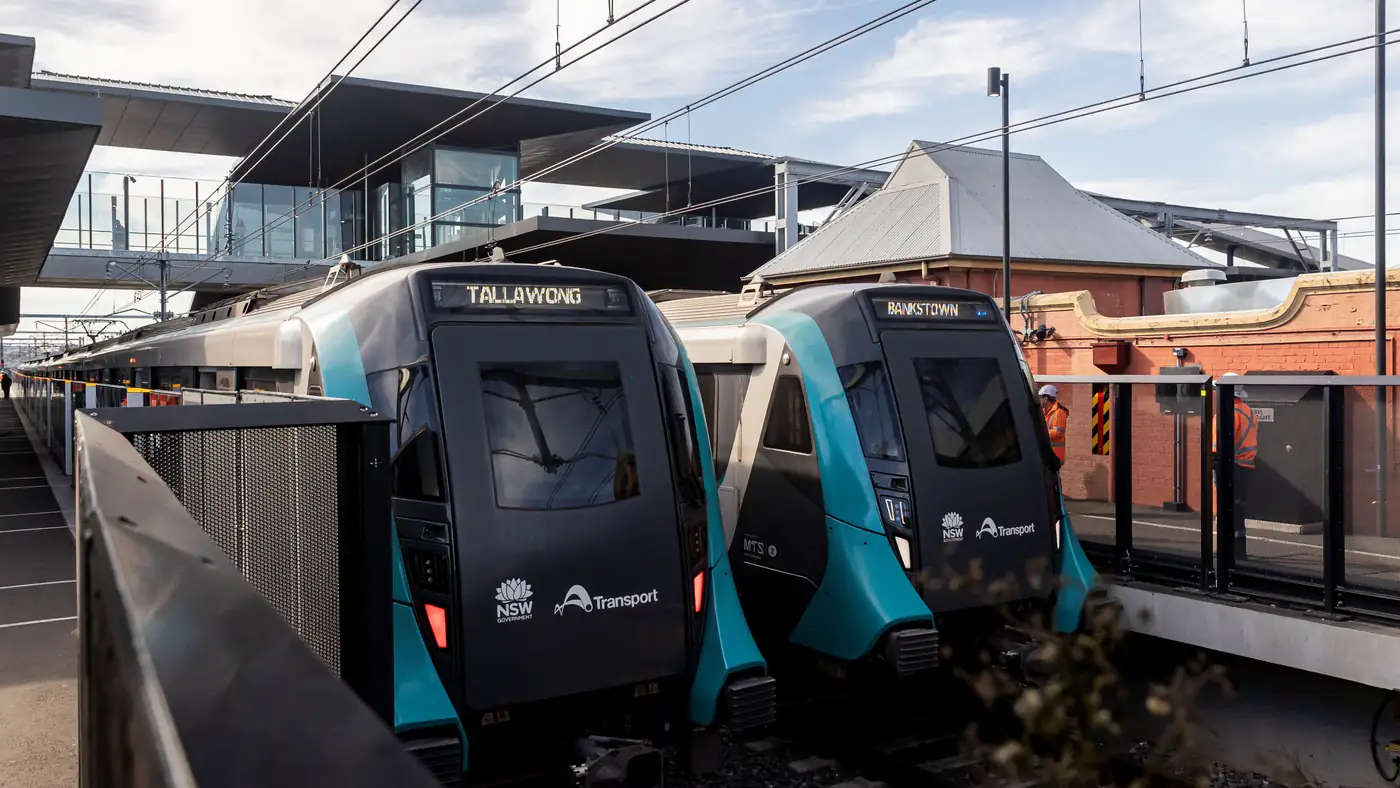
Complete guide to Sydney's Metro Southwest Bankstown line: timetable, fares, stations, Opal fares, parking, and commuter tips for the new line.