
Sydney Guides: Sydney for Students: The NSW Government provide
A comprehensive guide to Sydney for students, including universities, accommodation, and costs. Sydney is home to some of Australia's most prestigious.
7 min read

Two-factor authentication (2FA) adds a second layer of security to your NSW Government accounts. Even if a password is compromised, a second verification.

The Sydney Times Desk is a contributing writer covering guides and public affairs for The Sydney Times.
Two-factor authentication (2FA) adds a second layer of security to your NSW Government accounts. Even if a password is compromised, a second verification factor prevents unauthorised access to your driver licence details, vehicle registration, fines, and personal information. Service NSW, Revenue NSW, and RMS all support 2FA through different methods.
A 2025 report from the Australian Cyber Security Centre noted that account takeover attempts against government service logins increased by 40 percent year on year. Enabling 2FA is the single most effective step you can take to protect your account.
Log in to myservice.nsw.gov.au and click your name in the top right corner, then select "Security Settings." Under "Two-Factor Authentication," click "Enable." You can choose between:
The authenticator app method is more secure because it does not rely on mobile network availability and is not vulnerable to SIM swapping attacks. Scan the QR code displayed on the screen with your authenticator app and enter the six-digit code to confirm setup.
For Revenue NSW online services, including parking fines and stamp duty payments, log in and navigate to "My Account," then "Security Settings." Revenue NSW supports SMS authentication and email verification codes. Unlike Service NSW, Revenue NSW does not yet support third-party authenticator apps, so SMS is the only option for now.
Store your recovery codes in a password manager. If you lose access to your registered mobile number, you will need to call Revenue NSW on 1300 305 518 to verify your identity and reset your 2FA method.
The RMS online portal for vehicle registration and driver licence services uses your Service NSW login by default. If you access RMS through the myServiceNSW portal, enabling 2FA on your Service NSW account automatically protects your RMS access.
If you have a separate RMS account, contact RMS on 13 22 13 to link it to your Service NSW account and use the same 2FA settings.
Write down the backup codes provided during setup and store them in a secure password manager such as 1Password or Bitwarden. If your phone is lost or stolen, these codes allow you to regain access without contacting support. Do not store backup codes in cloud documents that are not encrypted with a zero-knowledge architecture.
If you use an authenticator app, back up its encrypted database to iCloud or Google Drive. Most apps offer encrypted cloud backup as an optional feature. Without a backup, changing your phone means resetting 2FA on every account, which can take days for government services.
Periodically review the list of active devices and sessions in your Service NSW security settings. If you see unfamiliar logins, end the session immediately and change your password. Government service portals do not send unsolicited emails asking you to verify your account or click a link. Any such message is a phishing attempt.
Direct inquiries, corrections, or documentation concerning this dispatch to our editorial newsroom desk.
A comprehensive guide to Sydney for students, including universities, accommodation, and costs. Sydney is home to some of Australia's most prestigious.

A comprehensive guide to Sydney for families, including schools, parks, and activities. The city offers an exceptional range of family-friendly destinations.

A comprehensive guide to moving to Sydney, including neighbourhoods, transport, and costs. The guide covers everything you need to know about relocating.
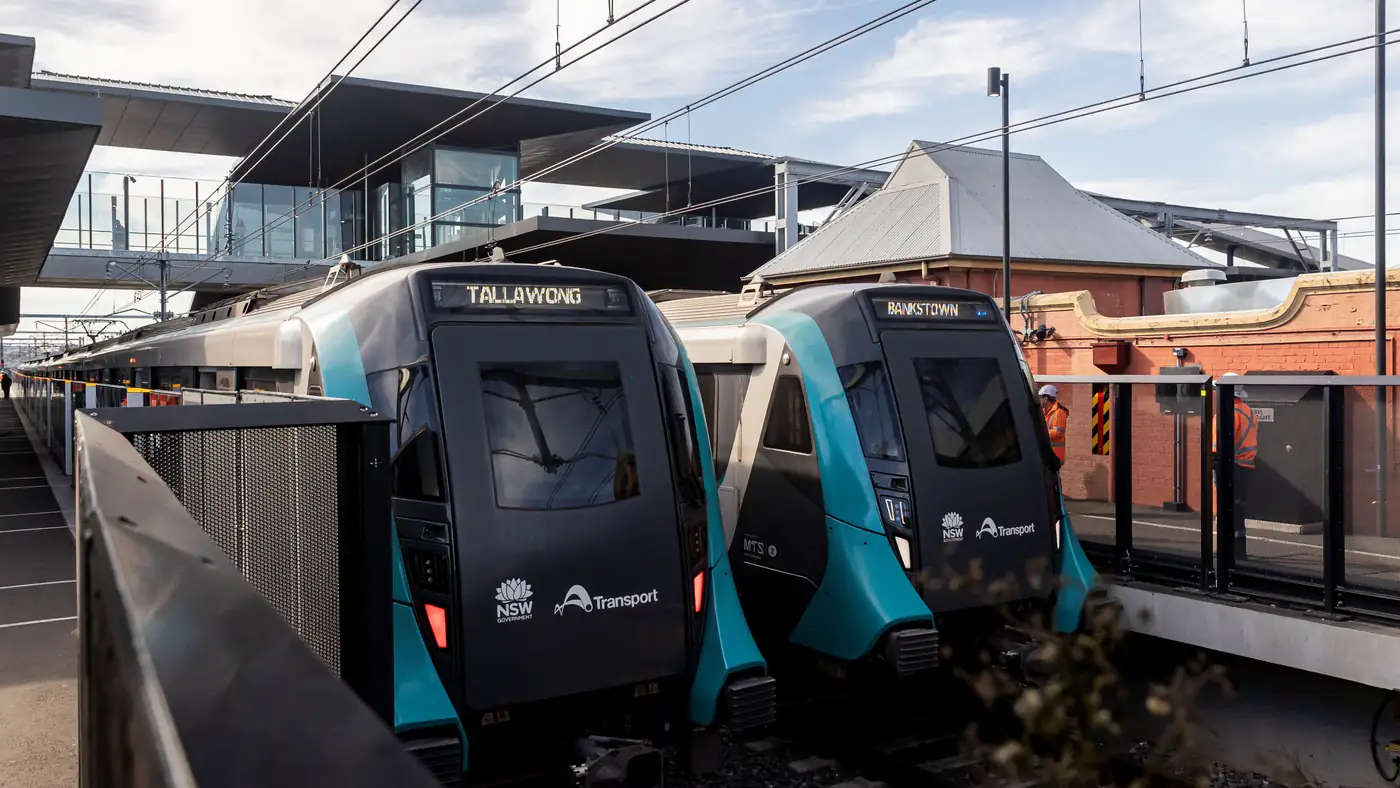
Complete guide to Sydney's Metro Southwest Bankstown line: timetable, fares, stations, Opal fares, parking, and commuter tips for the new line.